
As a food blogger, I’ve been using Filmora to edit my videos for several years—and I’m still discovering new ways to make them even better! When you’re following a recipe, seeing each step in action can make all the difference. After all, nobody wants to pause and rewind five times just to catch a quick flash of “2 tablespoons olive oil.” And if the chicken suddenly appears golden and roasted without showing how it got there, or a noisy kitchen fan swallows half the instructions, things can get confusing fast. So lets see how we can make cooking videos easier to follow.
That’s why I’ve been experimenting with editing tricks that make cooking videos easier and more enjoyable to follow. Filmora 16 includes tools that can help organize cooking steps, add easy-to-read labels, and make narration clearer. I’m sharing some of my favorite techniques here in case you create recipe videos, travel videos, or any other kind of content. We’ll use a sheet-pan lemon garlic chicken recipe as our example and turn the footage into a video that helps viewers cook with confidence.Filmora video editing software
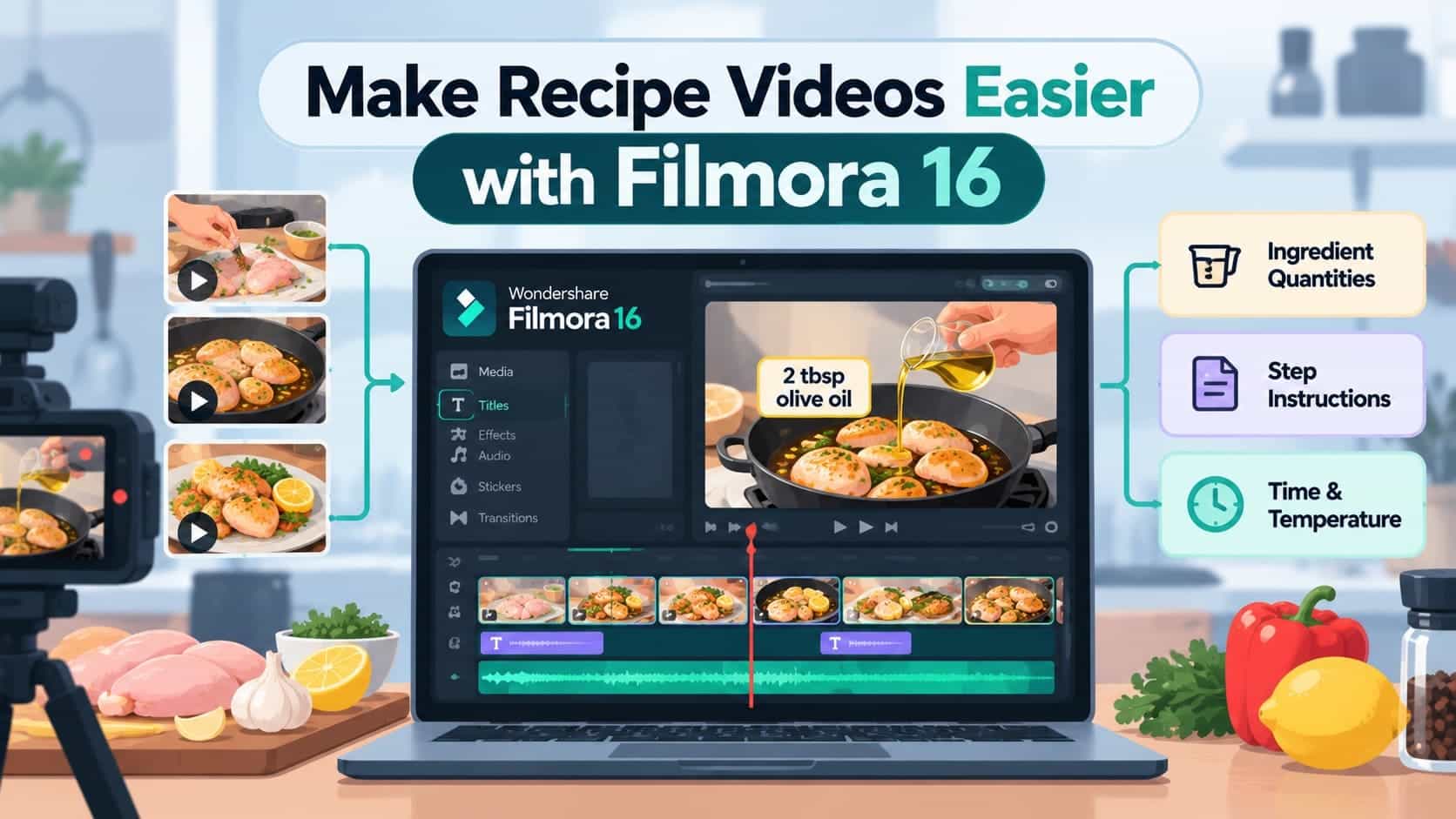
Part 1. Plan Your Cooking Video for Clear Instructions
A little planning before you hit record can save you a ton of editing time later! Think about what a home cook needs to see to recreate your dish, then make a quick shot list. For our sheet-pan lemon garlic chicken, that means capturing the prep, the marinade, the chicken going onto the tray, the oven step, and—of course—the delicious finished result. Here’s what to film:
| What to Capture | Details for the Chicken Recipe |
| Preparation Steps | Zest the lemon, mince the garlic, and coat the chicken thighs in the marinade. |
| Ingredient Quantities | Show 2 tablespoons olive oil, 4 garlic cloves, 1 lemon, and 6 chicken thighs on screen as each ingredient is added. |
| Cooking Cues | Roast at 200°C for about 35 minutes, until the skin is golden and the chicken reaches 74°C (165°F) internally. |
| Finished Result | Remove the tray from the oven and cut into one thigh to show the fully cooked inside. |
Some cooking moments practically beg for a close-up. Show the glossy lemon-garlic marinade coating the chicken, the skin turning beautifully golden, and a thermometer confirming the chicken has reached 74°C (165°F). These quick visual details tell the story far better than a long explanation—and they help viewers know what to look for in their own kitchens.
Want to Save This Recipe?
Enter your email & I'll send it to your inbox. Plus, get great new recipes from me every week!
By submitting this form, you consent to receive emails from Went Here 8 This.
Part 2. Organize and Trim Cooking Video Clips in Filmora 16
Now for the editing fun! Import your footage into Filmora and arrange the clips in the same order someone would cook the recipe: prep the ingredients, make the marinade, arrange the chicken on the tray, roast it, and reveal the finished dish. Filmora can also help you prepare a polished video for your YouTube channel. Once everything is on the timeline, tidy up the footage with these three simple edits:YouTube video editor
- Remove Repeated Actions: On Windows, press “Ctrl + I” to open “Import Media Files,” then import your recorded clips. Keep the clearest take of each step. If you filmed yourself mincing garlic three times, you only need the best version—unless the outtakes are especially entertaining!
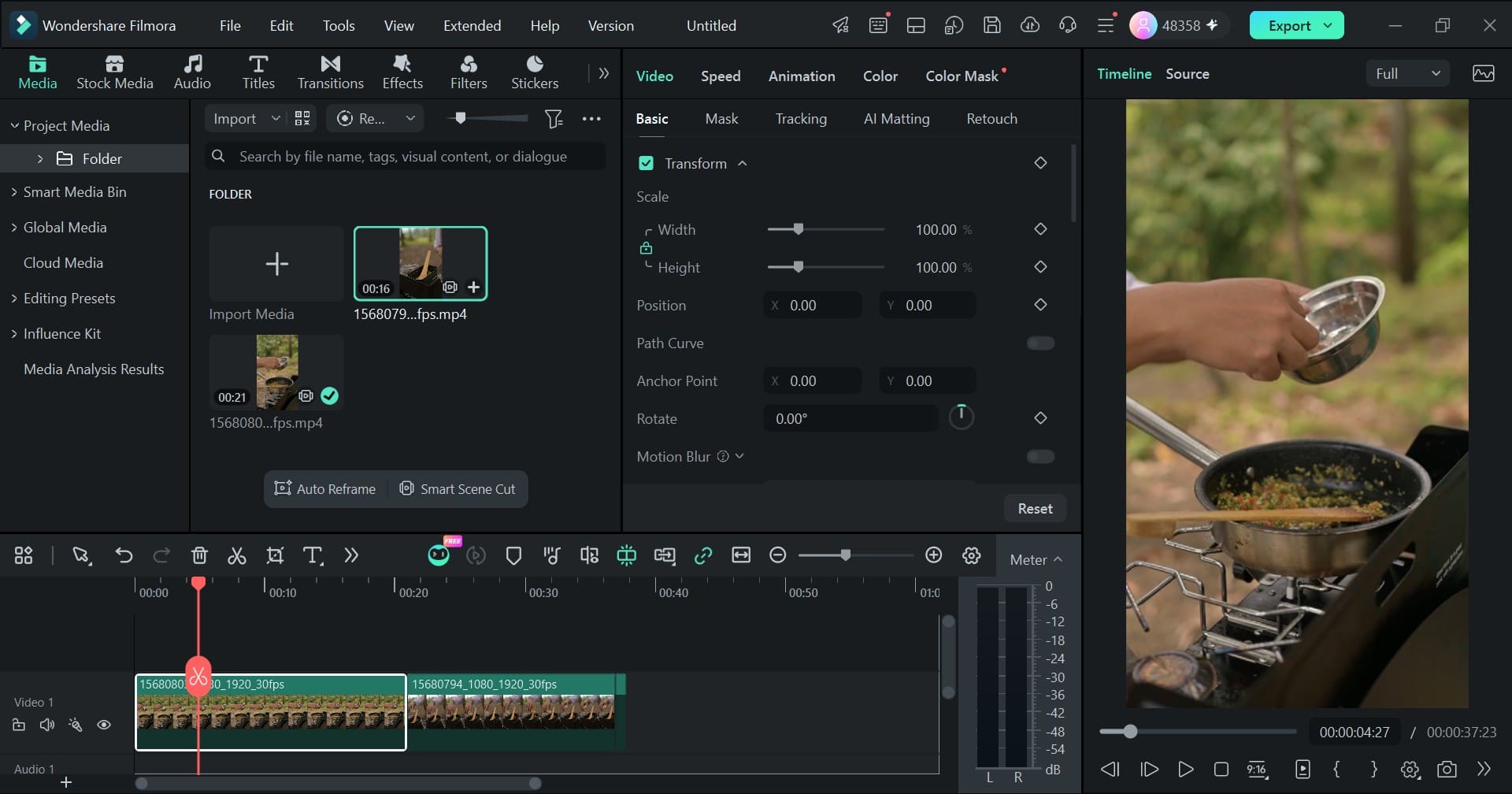
- Cut Unnecessary Waiting: Trim long stretches where nothing changes, such as the time between sliding the tray into the oven and seeing the first signs of roasting. Keep the pace moving without cutting away anything viewers need to learn.
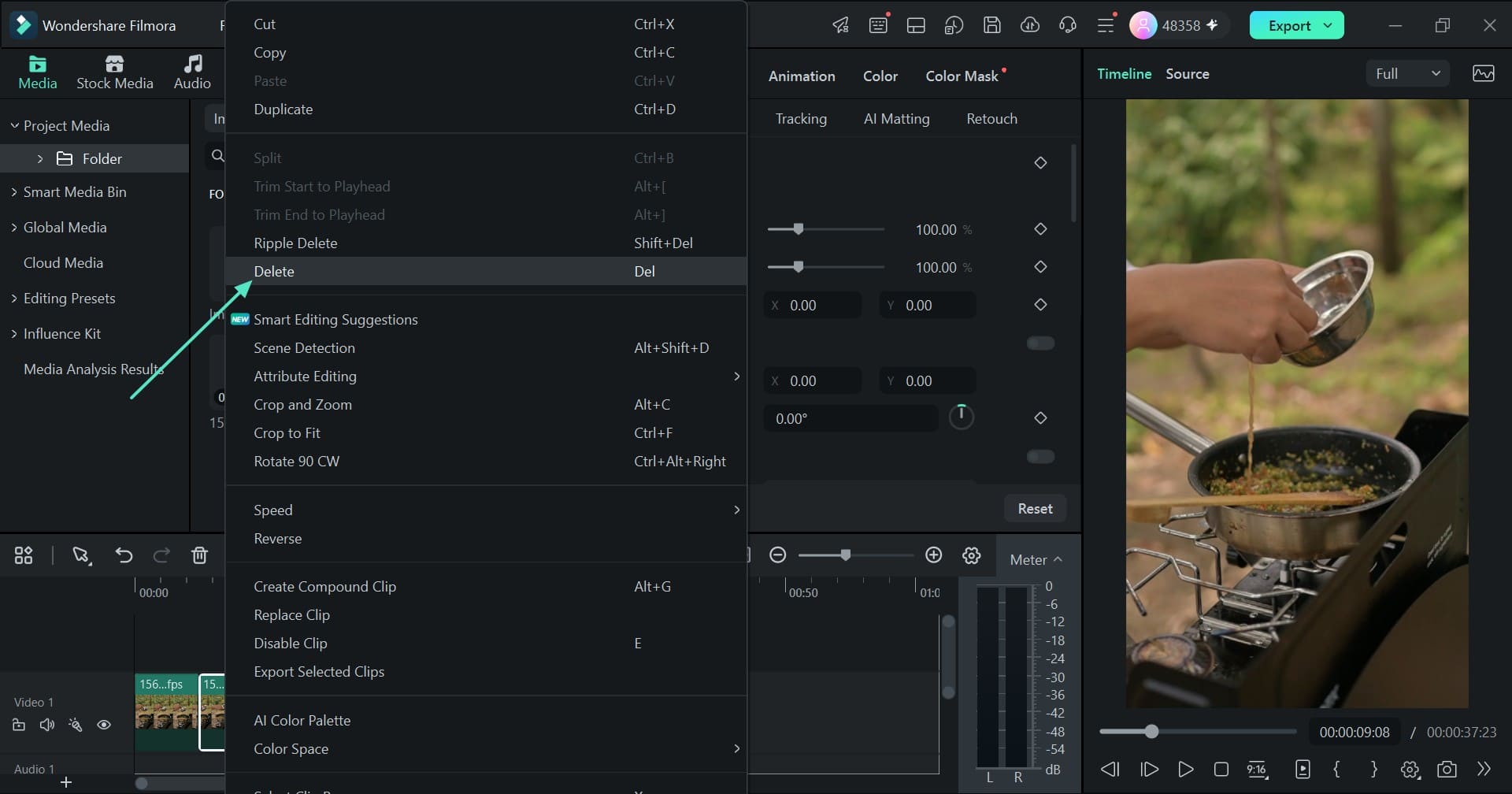
- Keep the Helpful Details: Don’t trim out the little things that make a recipe work. Show the chicken skin side up and leave enough space between the thighs so viewers can see exactly how to arrange them on the tray.
When you speed through a long cooking step, make sure the video still tells the truth about timing. If 35 minutes in the oven becomes a quick 10-second jump, add a clear label such as “35 minutes later.” You can also include a short midway clip to show how the chicken should look as it roasts. A little context keeps expectations—and dinner plans—on track!
Part 3. Add Ingredient Quantities and Step Labels
Your clips are now in the right order, but viewers still need the practical details: how much of each ingredient to add, what to do next, and how long to cook everything. In Filmora 16, you can add text using titles on the timeline. For our lemon garlic chicken, three types of labels will do a lot of the heavy lifting:add text to cooking videos
- Ingredient Quantities: Put the amount on screen as the ingredient goes into the dish, such as “2 tablespoon olive oil” or “4 garlic cloves.” No guessing, no frantic rewinding!
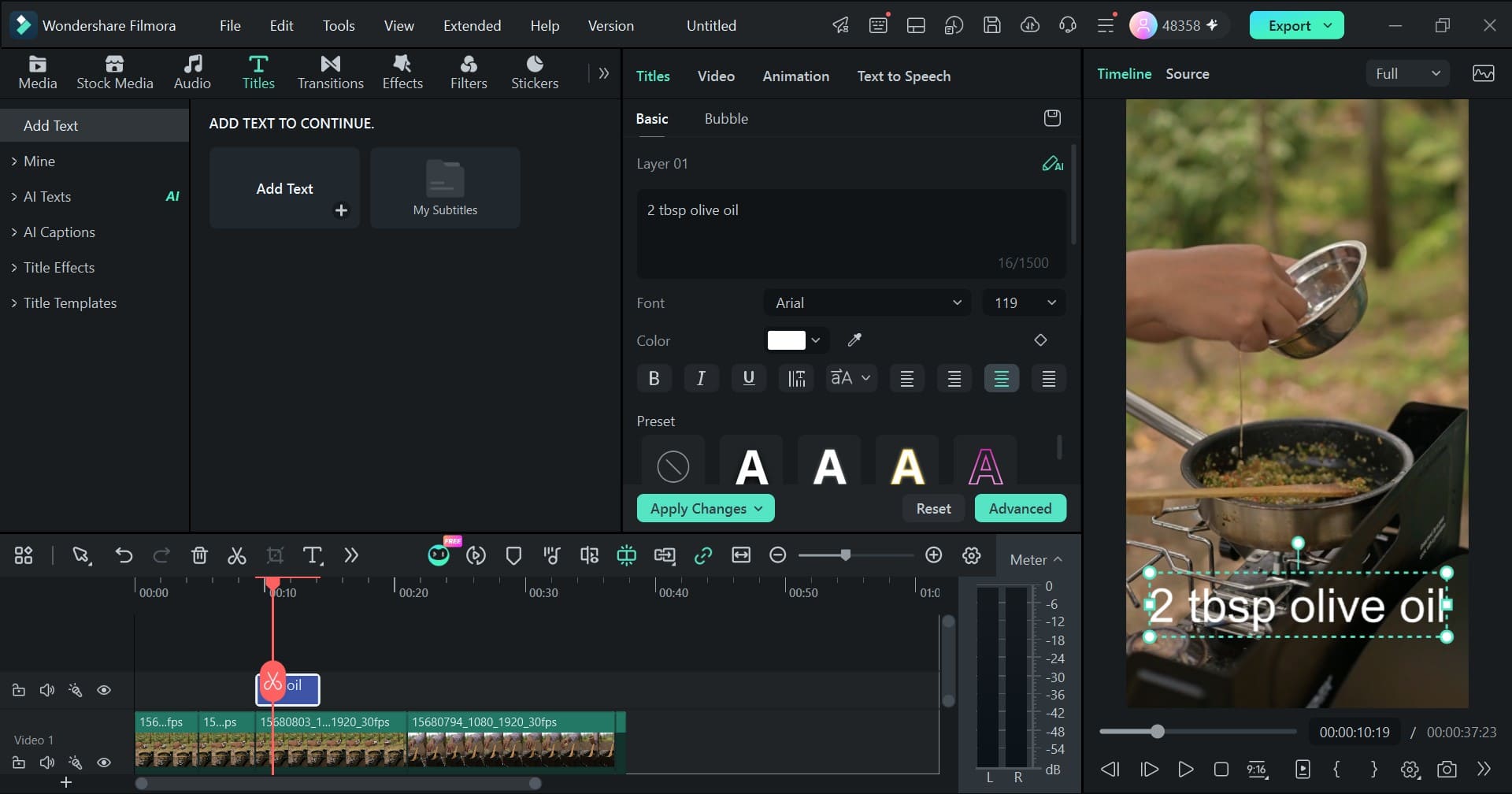
- Short Instructions: Use quick, helpful prompts such as “Skin side up” or “Leave space between thighs.” Keep them short enough to read at a glance.
- Time and Temperature: Show “200°C” and “35 minutes” during the oven step. If you shorten the roasting footage, add “35 minutes later” so viewers understand how much time has actually passed.
Readable labels make a recipe video much easier to follow. Keep these quick checks in mind whenever you add text:
| Check | What to Do |
| Position | Keep text clear of hands and food. The top or bottom of the frame often offers the best space. |
| Format | Use consistent fonts, sizes, and colors so viewers know where to look for each label. |
| Duration | Leave each label on screen long enough to read twice. About four seconds is a useful starting point for a short ingredient quantity. |
| Contrast | Add a subtle shadow or solid background if text blends into the tray, food, or countertop. |
Make sure every label matches the written recipe exactly. If the video says “4 garlic cloves” but the recipe card says “5,” your viewers are left wondering which one is right—and nobody needs extra kitchen confusion!
Note: Filmora’s Animated Text Generator offers more than 100 text animation effects. They can be fun to experiment with, but simple fades are often best for ingredient amounts. The goal is to help people read the recipe, not distract them with text doing cartwheels.
Part 4. Make the Narration Easier to Hear
Clear labels are great, but viewers also need to hear what you’re saying. Kitchen sounds—especially a loud extractor fan—can compete with your narration and make instructions hard to catch. Filmora has audio tools that can help reduce background noise without switching to a separate editing program. Here’s how to clean up the sound and decide when a fresh voiceover is the better option:reduce background noise
1. Tame the Kitchen Fan Noise
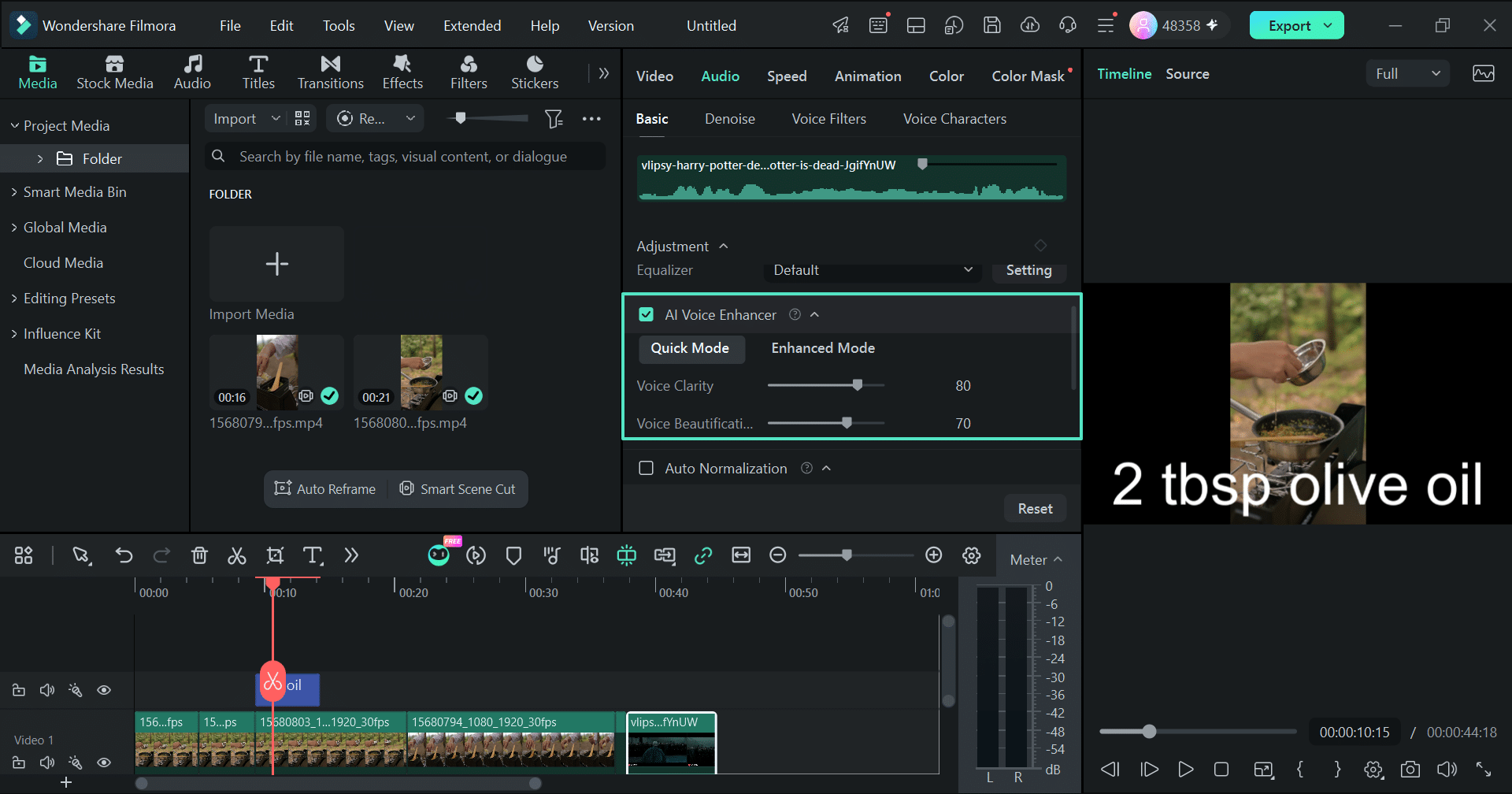
On Windows or Mac, select the clip with narration and open “Audio” > “Basic.” Turn on “AI Voice Enhancer” and adjust “Voice Clarity.” Then open the “Denoise” tab and enable “AI Denoise” to reduce unwanted background noise. Preview the clip and tweak the settings until your voice sounds clear and natural.
2. Compare the Before and After
Put on your headphones and replay the same 10 seconds with “AI Denoise” switched off and on. Filmora’s Windows guide notes that gentler noise-reduction settings preserve more of the original audio. If your voice starts sounding thin or unnatural, dial back the reduction and adjust “Voice Clarity” under “AI Voice Enhancer.” Aim for a clean voice—not a sound that’s been scrubbed of all personality!
3. Know When to Record a Fresh Voiceover
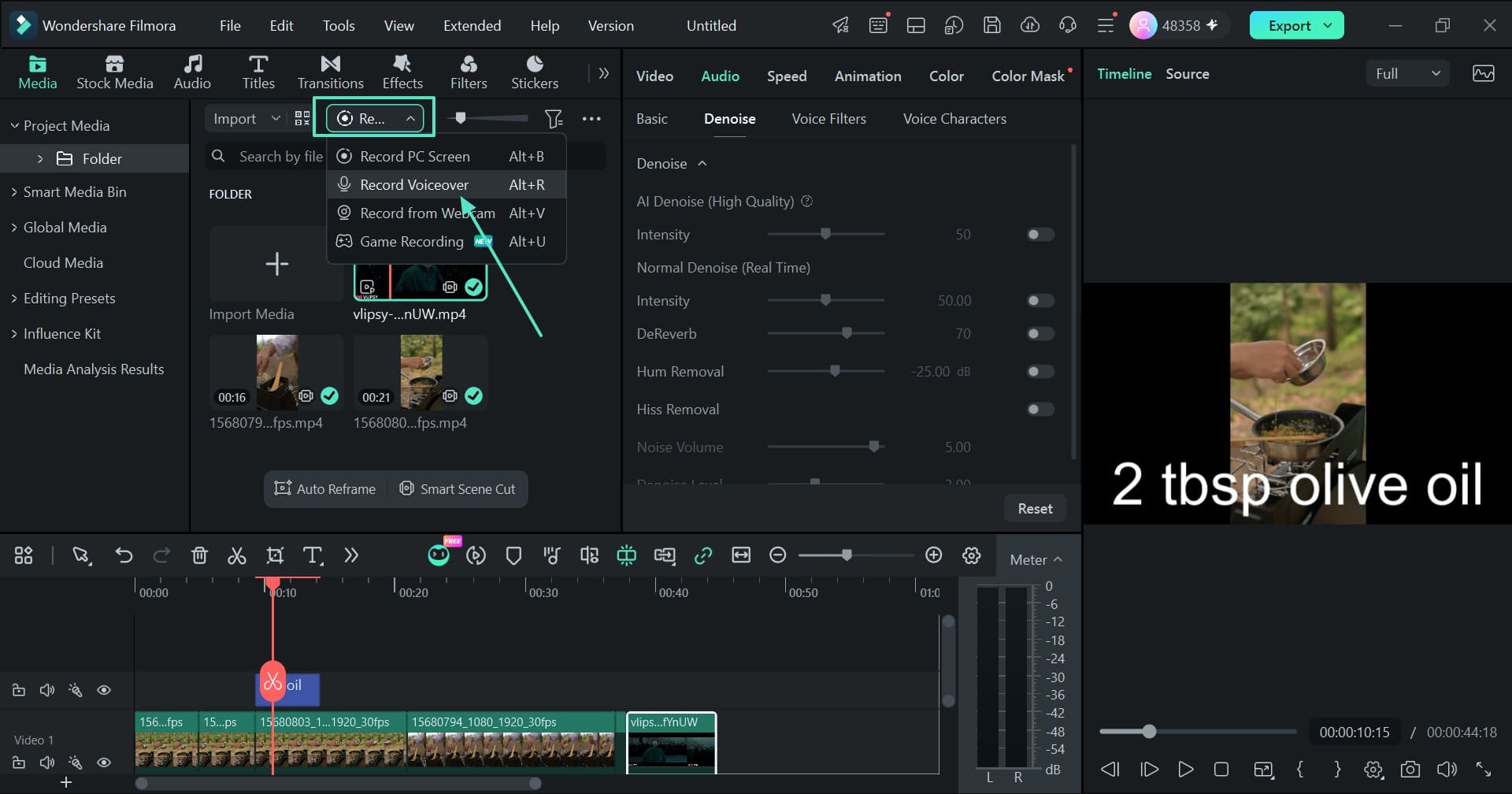
If the fan noise runs through the entire narration, stronger noise reduction may leave your voice sounding thin. Sometimes the easiest fix is to record the instructions again in a quiet room. Choose “Record Voiceover” from the “Record” button in the “Media” section, read from your recipe card, and mute the original audio so the two versions don’t overlap. A quick re-record can be much easier than trying to rescue noisy audio.
Part 5. Check the Video as Someone Following the Recipe
You know your recipe inside and out, but your viewers are seeing it with fresh eyes. Before you call the video finished, watch it from the perspective of someone cooking along for the first time. Use these four checks for our lemon garlic chicken video:
| Check | What to Confirm |
| Sound On | Narration is clear, and each spoken instruction matches the action on screen. |
| Sound Off | Labels and visuals show ingredient amounts, oven settings, and the correct order of steps without narration. |
| Written Recipe | Every label matches the recipe, including “2 tablespoon olive oil,” “4 garlic cloves,” “200°C,” and “35 minutes.” |
| Phone Screen | Text is easy to read on a phone and is not cut off or hidden by playback controls. |
Watch the video twice: once with the sound on and once muted. People may be cooking in a noisy kitchen, watching without headphones, or simply prefer captions. Both versions should make the steps easy to understand. Also, make sure important actions—like placing the chicken skin side up and leaving space between the thighs—are still visible after trimming.
Keep the real cooking time clear, too. Whenever you cut out a long wait, add a label such as “35 minutes later.” Otherwise, viewers might think the chicken cooks in seconds! Finally, play the exported video on your phone. If any text is tiny, clipped, or hidden behind playback controls, make it larger and export again.
Note: Filmora’s “AI Captions” tools under “Titles” can turn spoken instructions into on-screen captions, such as a tip about patting the chicken thighs dry. This can be especially helpful for viewers watching with the sound off. Generating new AI captions uses AI credits.
How To Make Cooking Videos Conclusion
Great cooking videos do more than show a beautiful finished dish—they help people recreate it at home. With a few thoughtful edits in Filmora 16, our lemon garlic chicken video can show ingredient amounts long enough to read, keep every step in the right order, and make the narration easier to hear. The same ideas work for travel videos, too, whether you’re sharing a bustling market, a memorable meal, or a day exploring somewhere new. I’m always learning and finding ways to improve my filming and editing, and I hope these tips give you a few ideas to try. Have fun experimenting, and let me know which tricks make your videos easier to follow!


Comments
No Comments